How to make a homebrew class and play it
The short answerCopy the class closest to your idea into your own compendium and change its text in the homebrew editor. Then add it to a character in the Builder like any other class. The sheet works out hit points, saves and proficiencies from your class, and shows its features level by level, with tick boxes for their uses.
- For players and DMs
- 27 short steps
- Updated 18 November 2026, for Archivist 1.7.0
This page's example is the Tidewarden, a class made up for the Drowned Coast, Archivist's own sample homebrew.
Copy the class closest to your idea
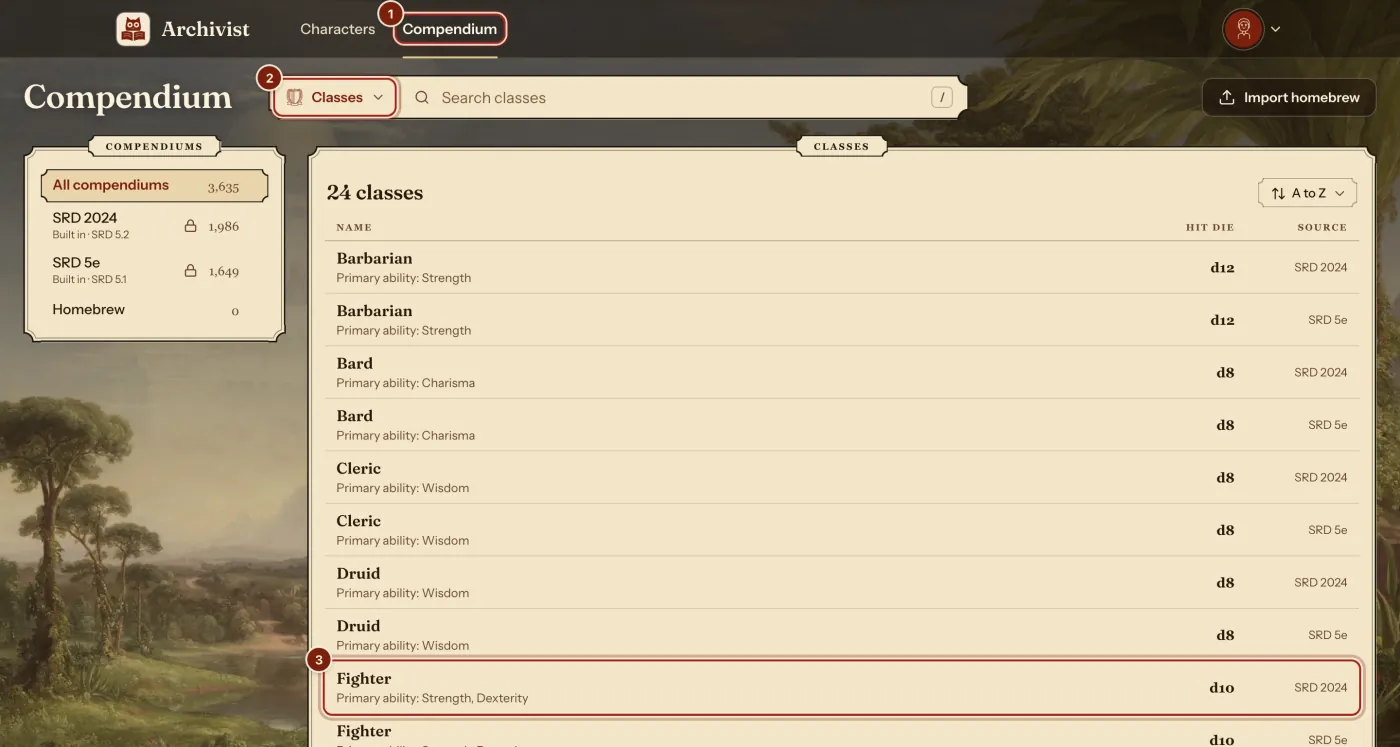
- In the top bar, press Compendium.
- At the start of the search bar, press Any kind, then Classes.
- Press the class closest to your idea. Here it is Fighter, the one from the SRD.
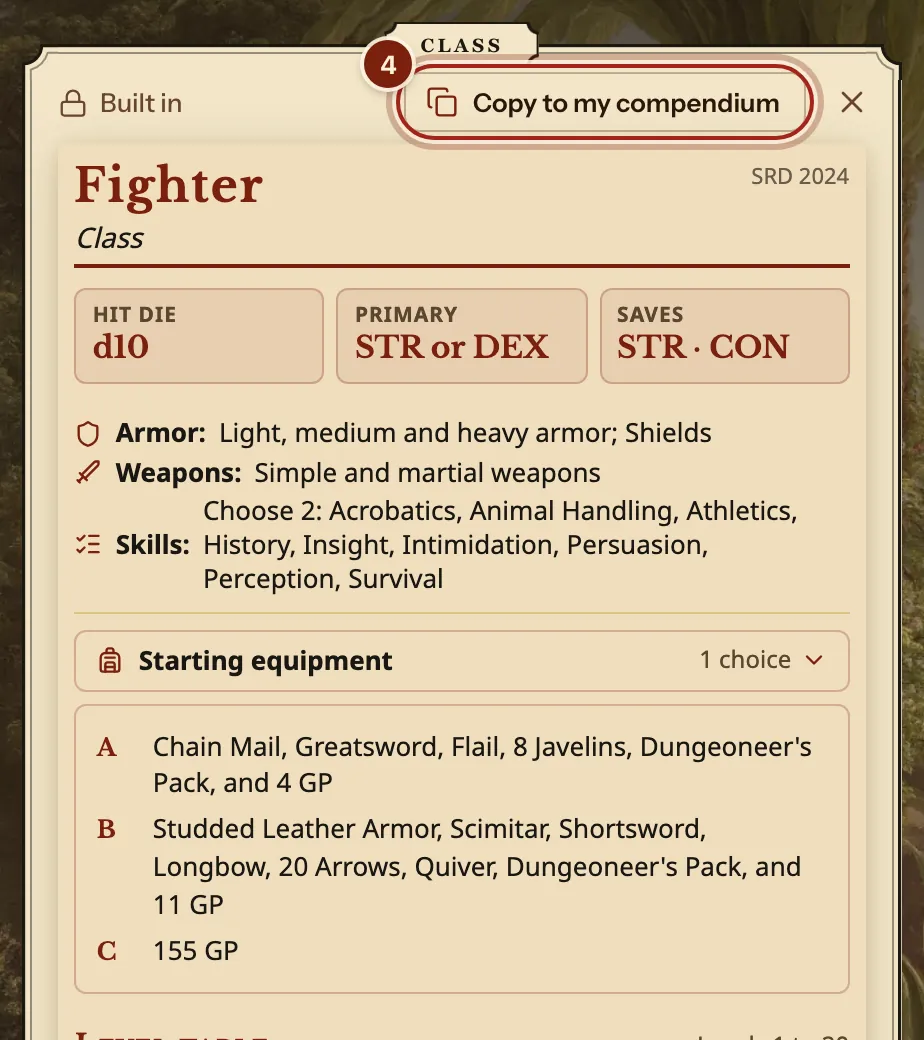
- At the top of the Fighter's card, press Copy to my compendium.
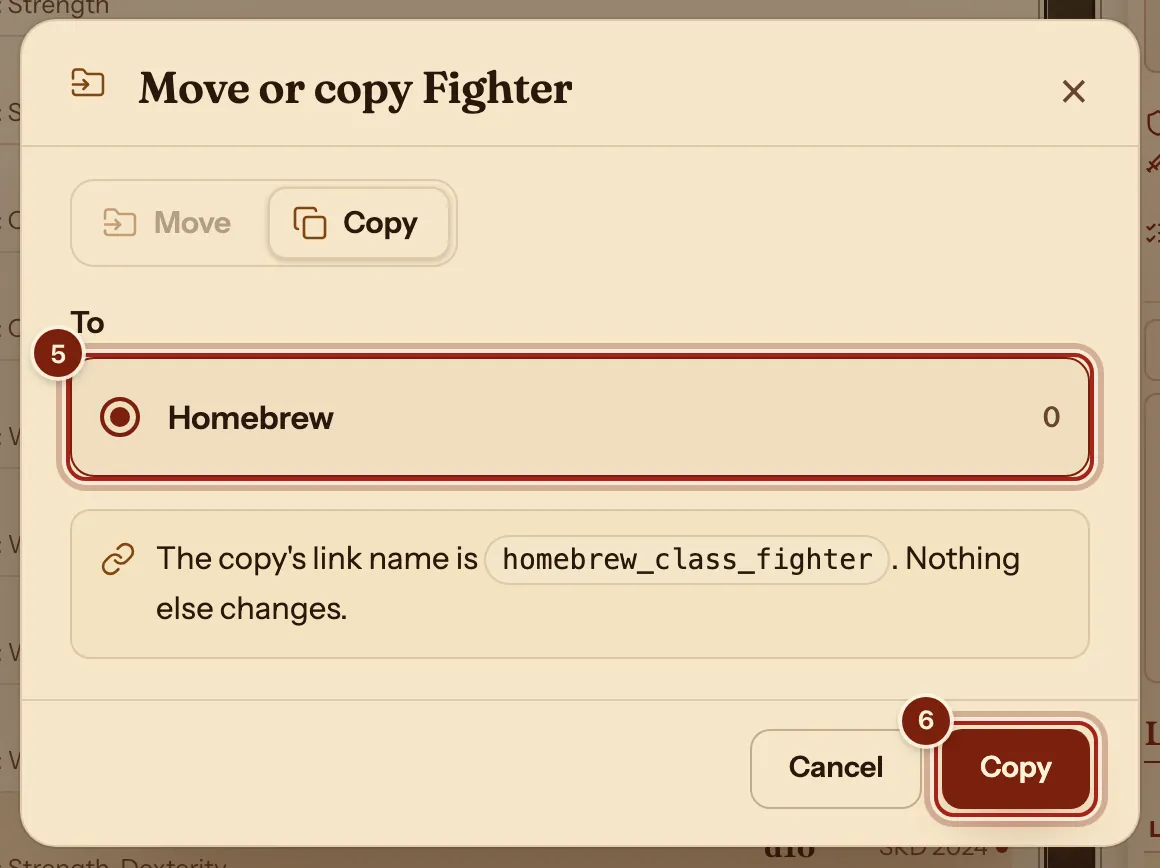
- Under To, press Homebrew. Every account starts with this compendium.
- Press Copy. A note says it was copied to Homebrew.
Change it into your class
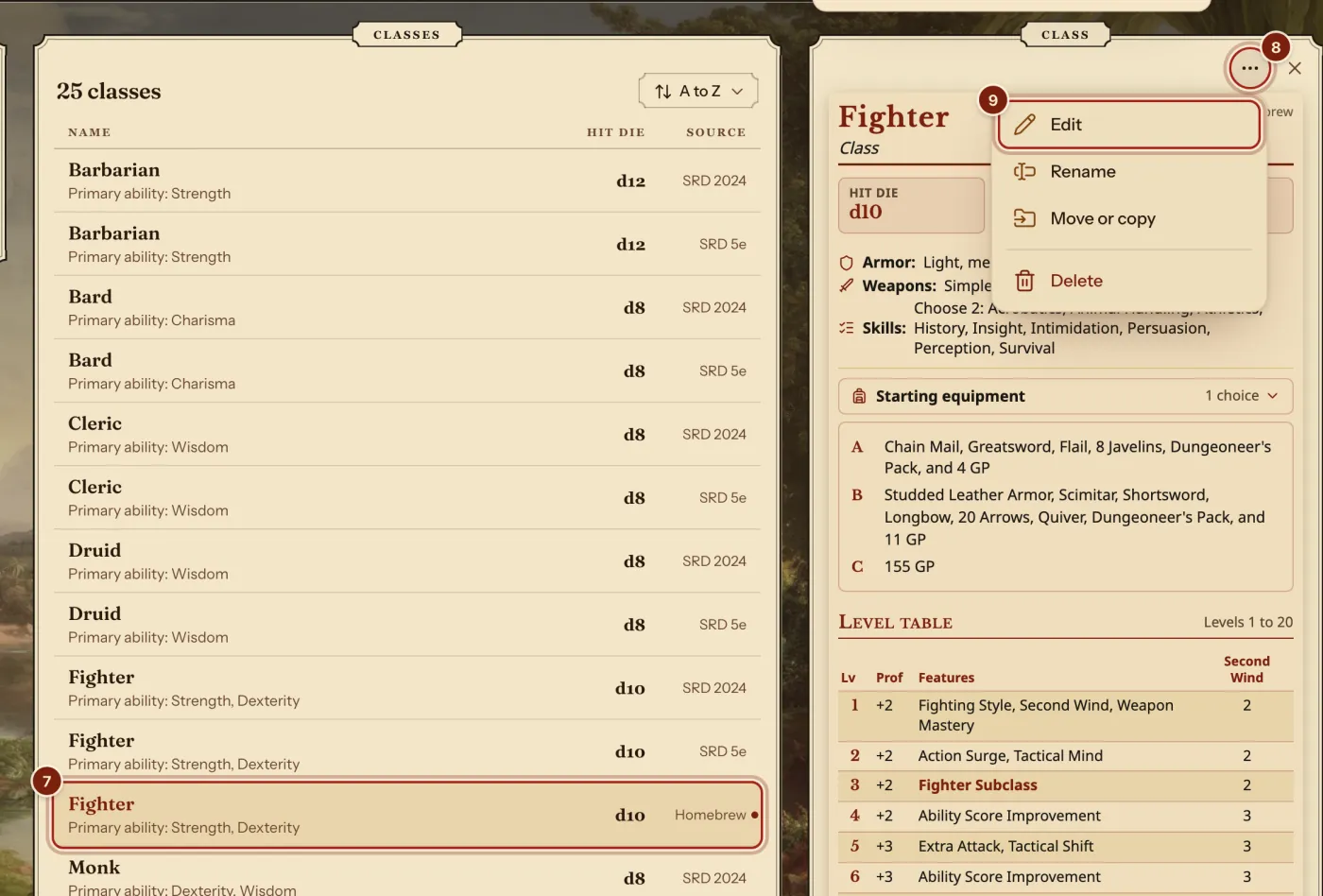
- In the list, press your copy: the Fighter row that ends in Homebrew.
- At the top of its card, press the ⋯ button.
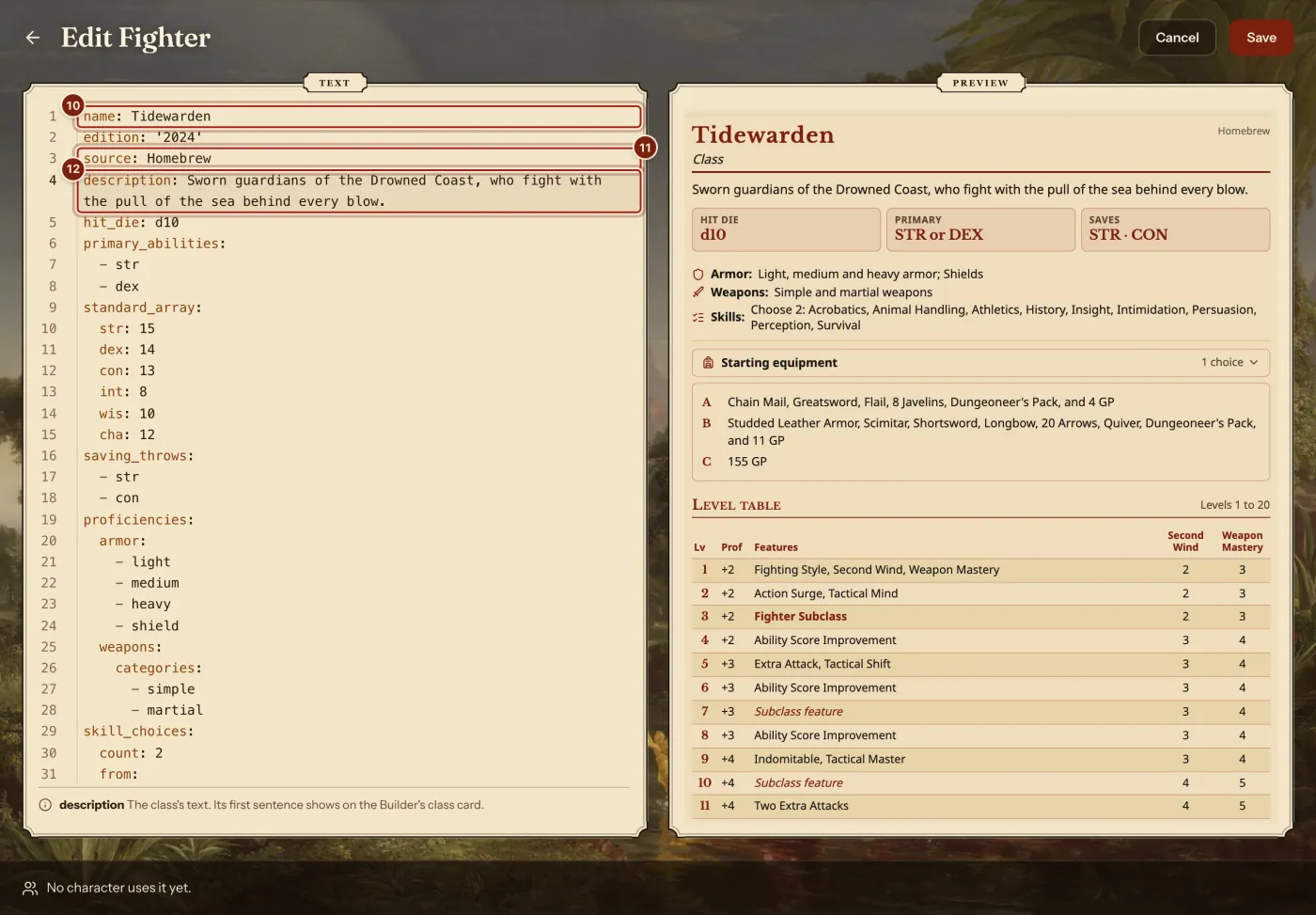
- Press Edit. The homebrew editor opens full screen, titled Edit Fighter.
- In the Text box, change the first line to your class's name:
name: Tidewarden. - Change
source: SRD 5.2tosource: Homebrew. - Change
description: ''to one sentence about your class.
The Preview beside the text draws the class again as you type, and the line at the bottom of the Text box says what the line you are on does. On a phone, Text and Preview are two tabs.
- Scroll down to the line
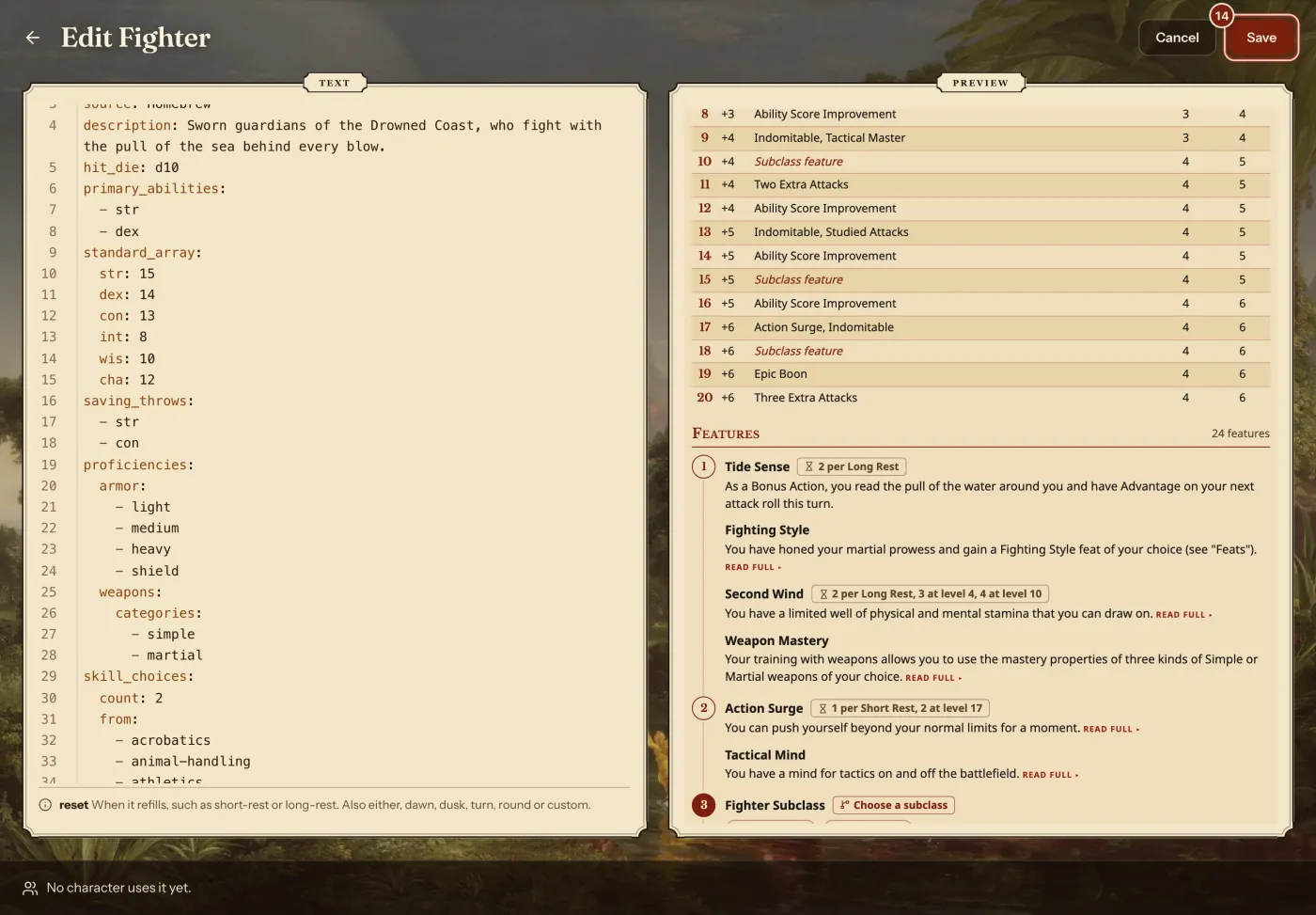
features_by_level:. Press at the end of the'1':line under it and press Enter. If the editor starts the new line with spaces, delete them, then paste these lines:A feature at level 1 with two uses- id: tide-sense name: Tide Sense description: As a Bonus Action, you read the pull of the water around you and have Advantage on your next attack roll this turn. action: bonus-action resources: - id: tidewarden:tide-sense name: Tide Sense max_formula: '2' reset: long-rest - Press Save at the top right.
These lines add a level 1 feature called Tide Sense, with two uses that come back on a Long Rest. Keep the spaces at the start of each line: a line that needs fixing is marked where it is, with what to change under it.
Put it on a character and play
- In the top bar, press Characters.
- Press New character.
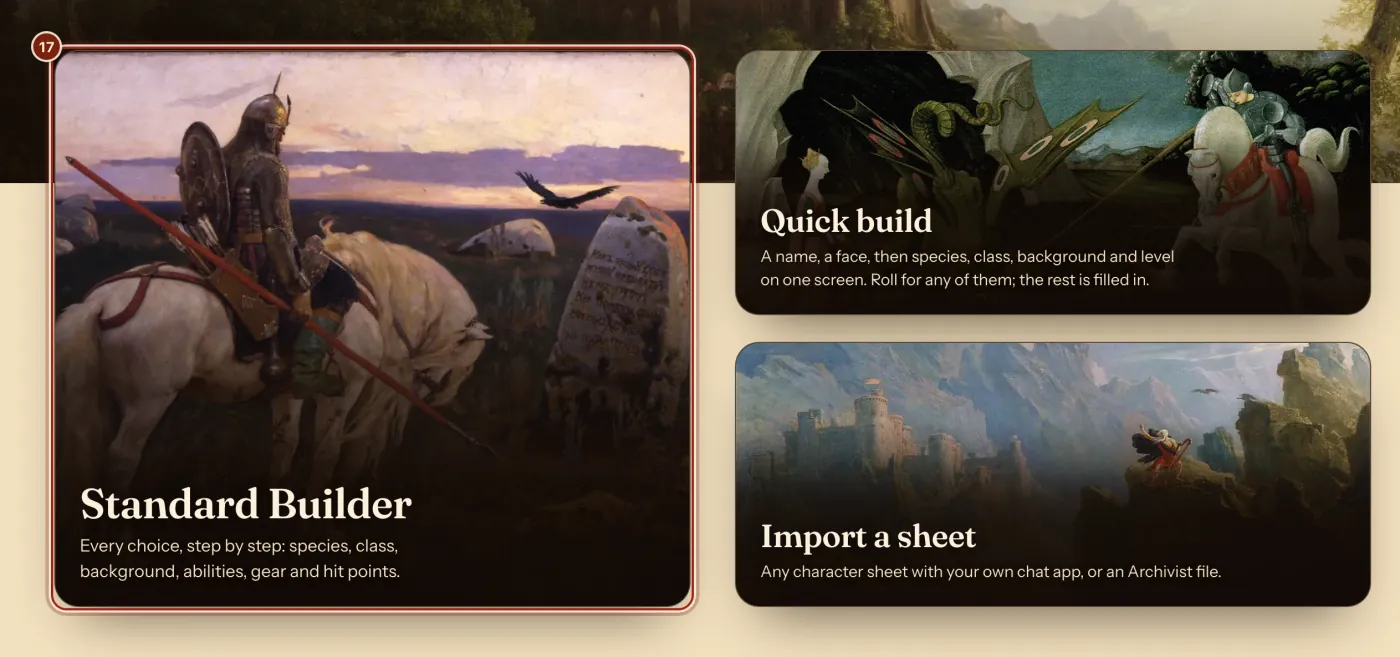
- Press Standard Builder.
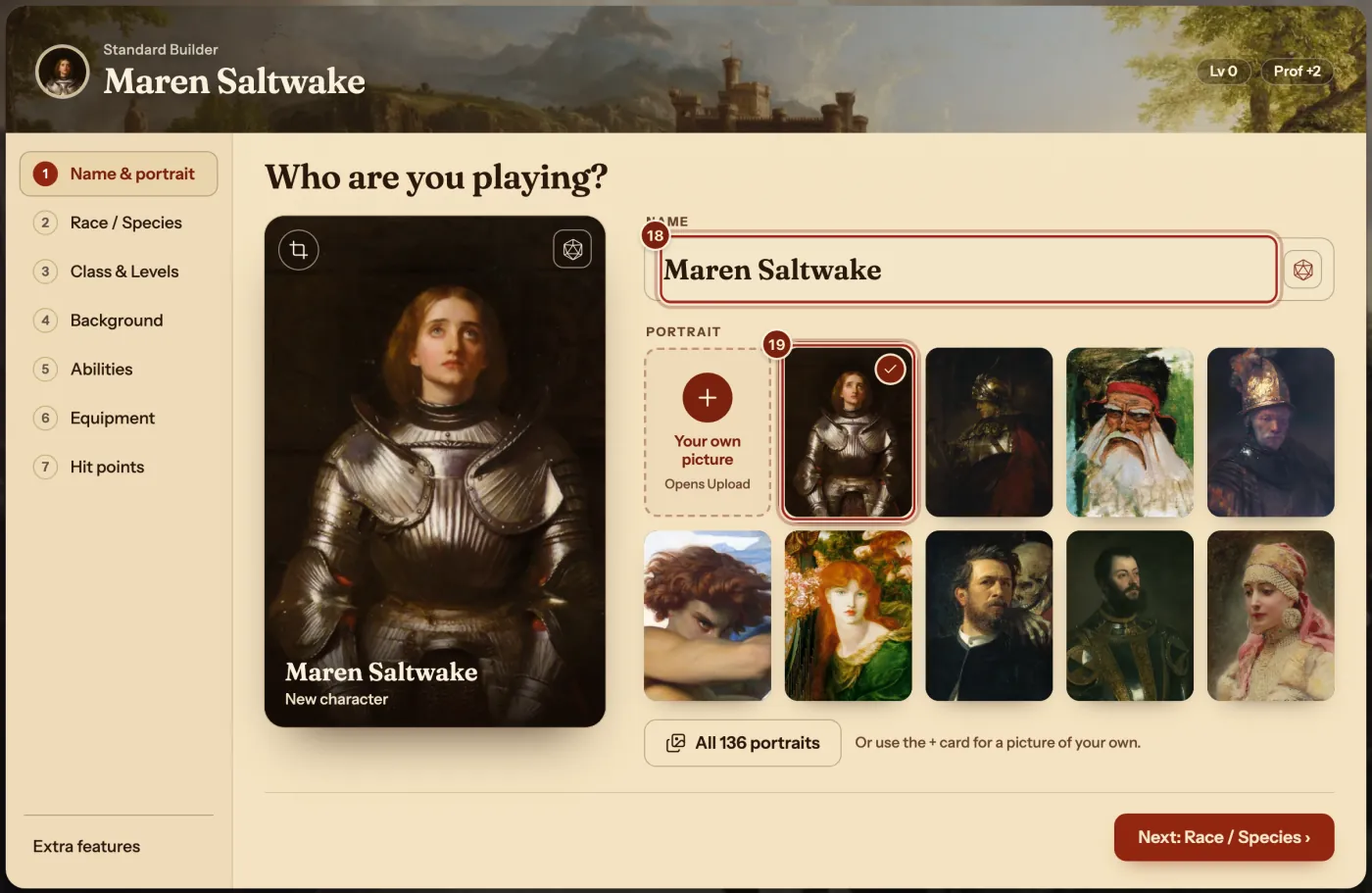
- Type your character's name under Name.
- Press a portrait.
- On the left, press Class & Levels.
- Press Add Class.
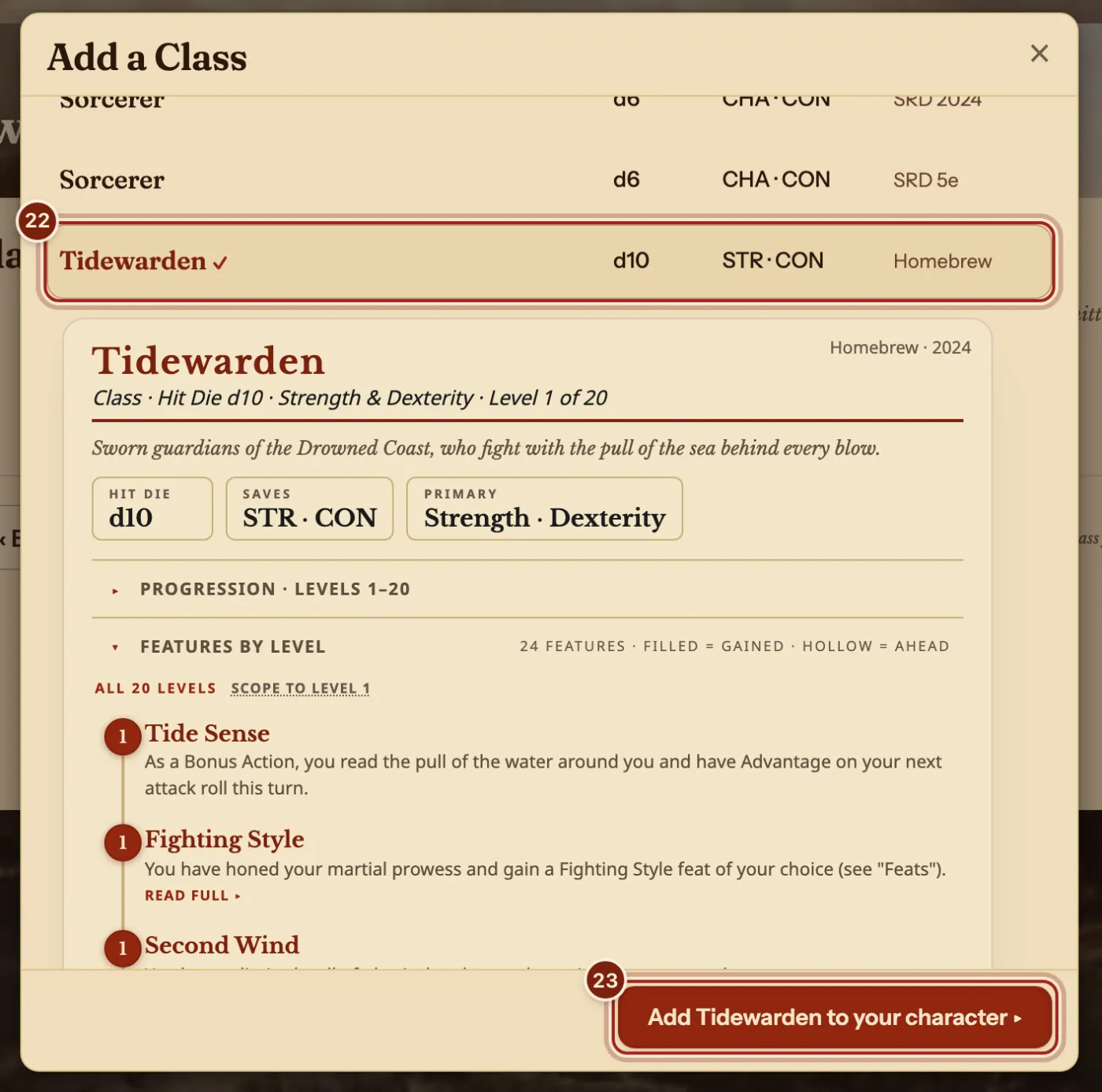
- In the Add a Class window, press your class. Homebrew sits in the same list as the SRD, so here it is Tidewarden.
- Press Add Tidewarden to your character.
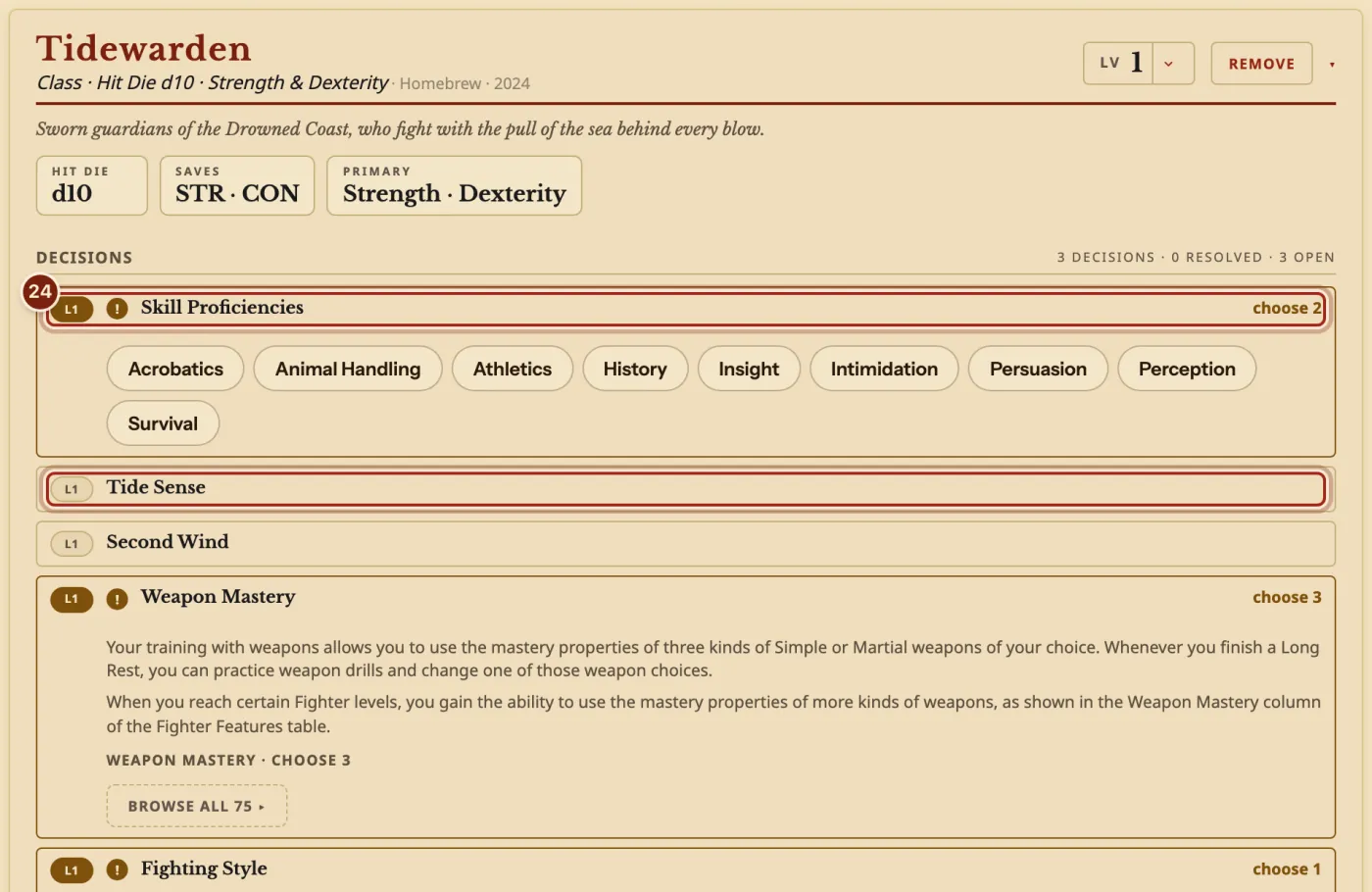
- Make each choice marked with ! on your class's card.
- Go through the other steps on the left: Race / Species, Background, Abilities, Equipment and Hit points. The Builder guide explains each one.
- Press Finish and open sheet.
- On the sheet's Actions tab, find your feature. Tick a box each time you use it.
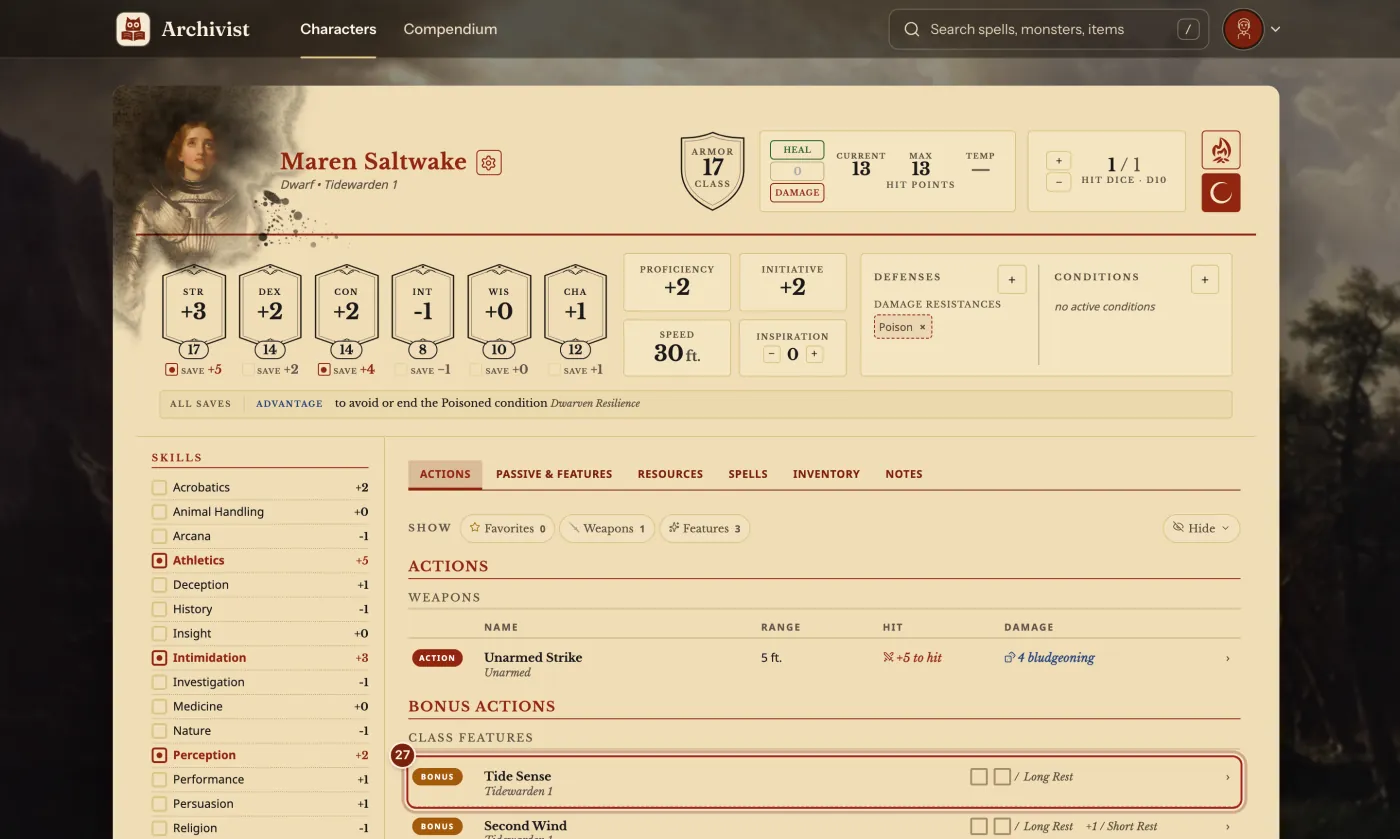
action: bonus-action line.The lines you will change most in a class
Every line below is already in your copy. Change the part after the colon. The Compendium format guide covers every kind of entry.
| Line | What it does | What you can write |
|---|---|---|
name | The class's name on the card, in the Builder and on the sheet. | name: Tidewarden |
hit_die | Sets hit points and Hit Dice. The first level takes the full die, each later level the fixed average. | d6, d8, d10 or d12 |
saving_throws | The two saving throws a character gets from their first class. | Two of str, dex, con, int, wis, cha |
skill_choices | How many skills the Builder asks for, and from which list. | count: 2, then the skills under from: |
spellcasting | Spell slots, spell save DC and spell attack. Every class needs this line. | caster_type: full, half, third, pact or half-up, or null for a class that casts no spells |
weapon_mastery | The Weapon Mastery the class gives. Every class needs this line too. | null for a class without Weapon Mastery |
subclass_level | The level where the Builder offers a subclass. | subclass_level: 3 |
features_by_level | What the class gains at each level, shown on the sheet once the character gets there. | id, name and description for each feature |
action | Where a feature sits: Actions, Bonus Actions or Reactions on the Actions tab. Leave it out for the Passive & Features tab. | action, bonus-action or reaction |
resources | Tick boxes for a feature's uses, and when they come back. | max_formula: '2', reset: long-rest, short-rest or dawn |
Questions
Save does nothing. What now?
A line that needs fixing is marked where it is, with the words under it, such as "concentration takes true or false." Pressing Save takes you to the first one. Fix it, and the mark goes. Keep the spaces at the start of each line, and if a sentence has a colon in it, put the whole sentence in double quotes.
What happens to my character when I change the class later?
Your change reaches every character that uses the class. The line at the foot of the editor says how many that is.
How do my players get my class?
On the Compendium page, press ⋯ beside your compendium in the Compendiums list, then Export, and send them the zip file. They press Import homebrew, then Archivist files and Continue, and drop it in. Share homebrew with your party shows each step.
Does my class have subclasses?
Your copy keeps offering the subclasses of the class you copied. To give it one of its own, follow Make a homebrew subclass.
Will I see my class on my phone?
Yes. Your homebrew stays in sync on every device you sign in on, along with your characters and their portraits.
Keep going
- Make a homebrew subclassWrite it in the homebrew editor, then choose it in the Builder.
- Compendium format guideHow a line works, the twelve kinds of entry, and the homebrew editor's help.
- Share homebrew with your partyExport your compendium as a zip; they bring it in with Import homebrew.
- Make a character, step by stepQuick build for one screen, Standard Builder for every choice.
- Level up a characterChoose Level up in the sheet's gear menu and follow its steps.