How to make a D&D character, step by step
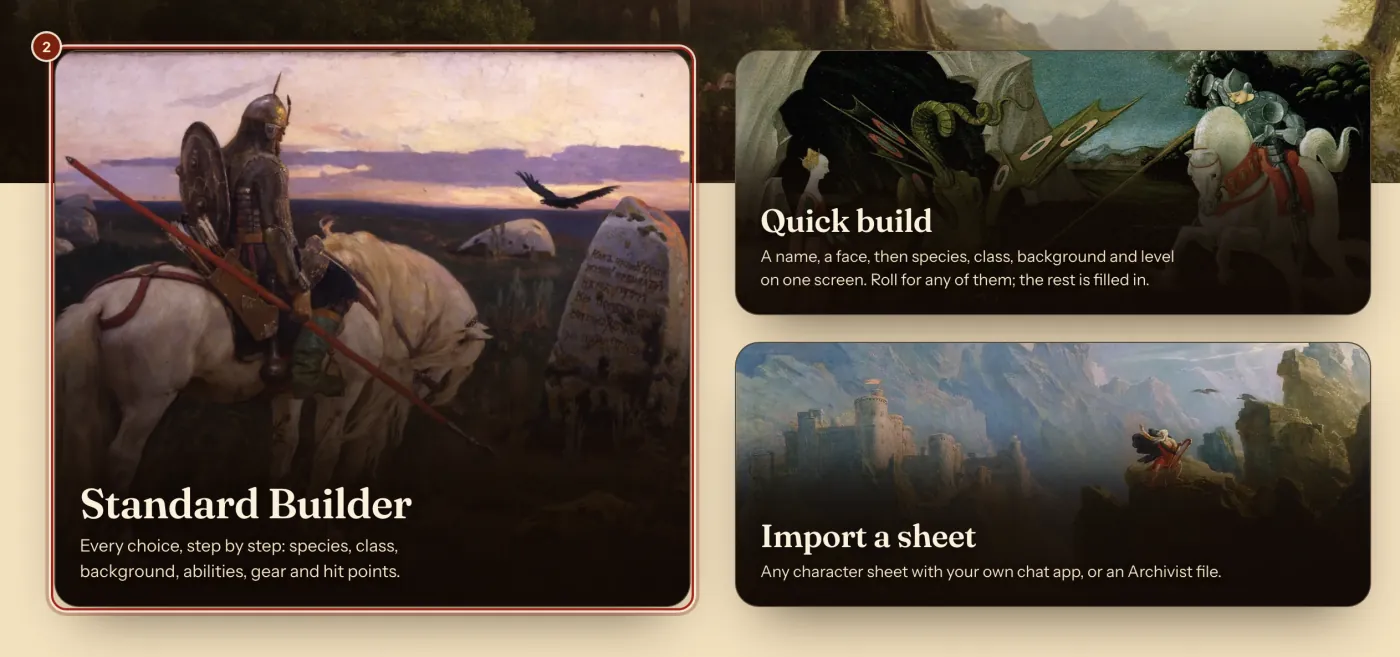
The short answerPress New character, then Standard Builder, and go through its seven steps: name and portrait, species, class and levels, background, abilities, equipment and hit points. Press Finish and open sheet, and the sheet has already worked out every number. For a finished character in two minutes, choose Quick build; to bring in a sheet you already have, choose Import a sheet.
- For players
- 17 short steps
- Updated 18 November 2026, for Archivist 1.6.2
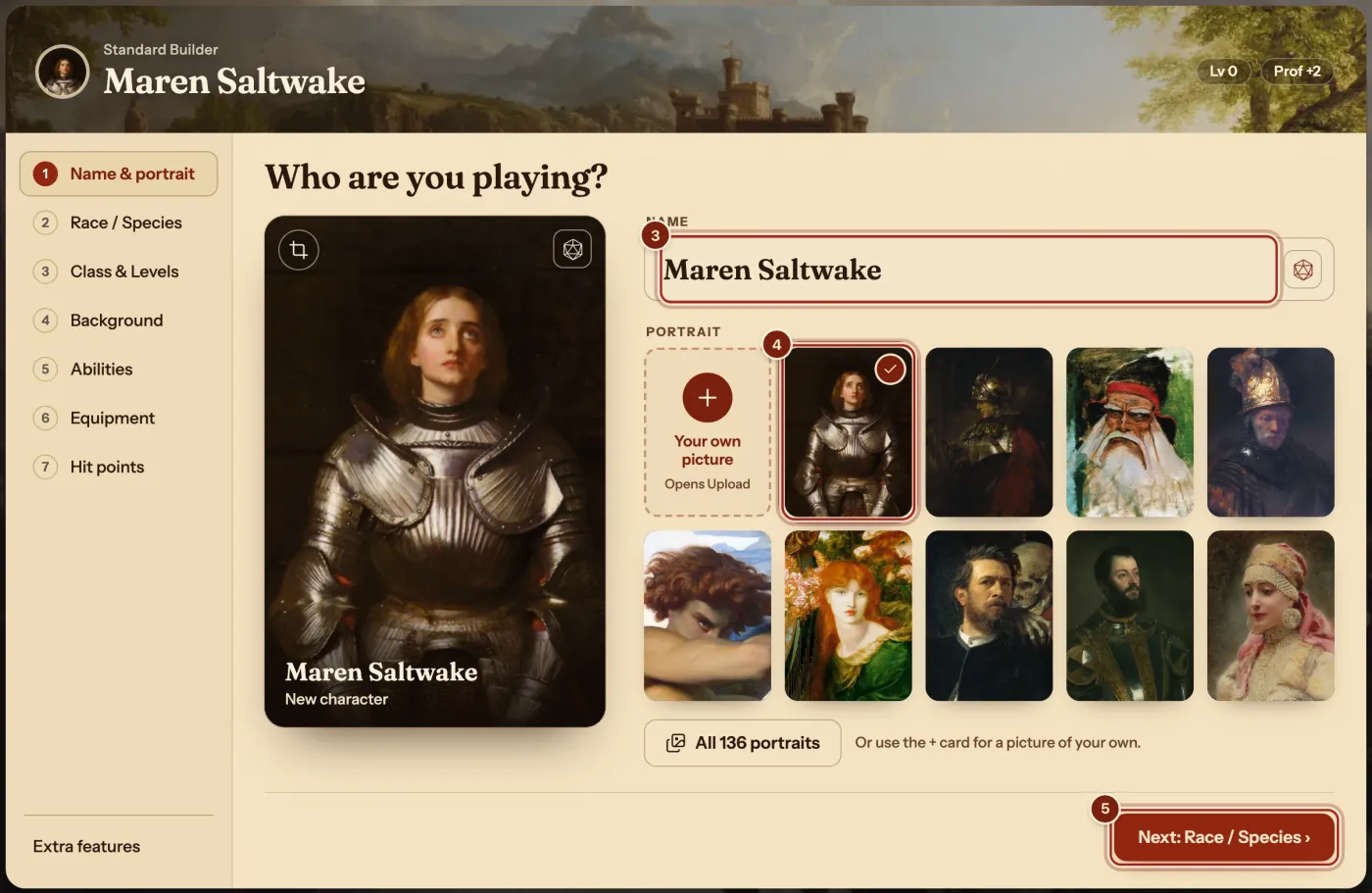
This page's example is Maren Saltwake, a level 1 Dwarf Fighter. Every choice can be changed later.
Start, and name your character
- On the Characters page, press New character.
- Press Standard Builder.
- Type a name.
- Press a portrait, or the + card for a picture of your own.
- Press Next: Race / Species.
Species and class
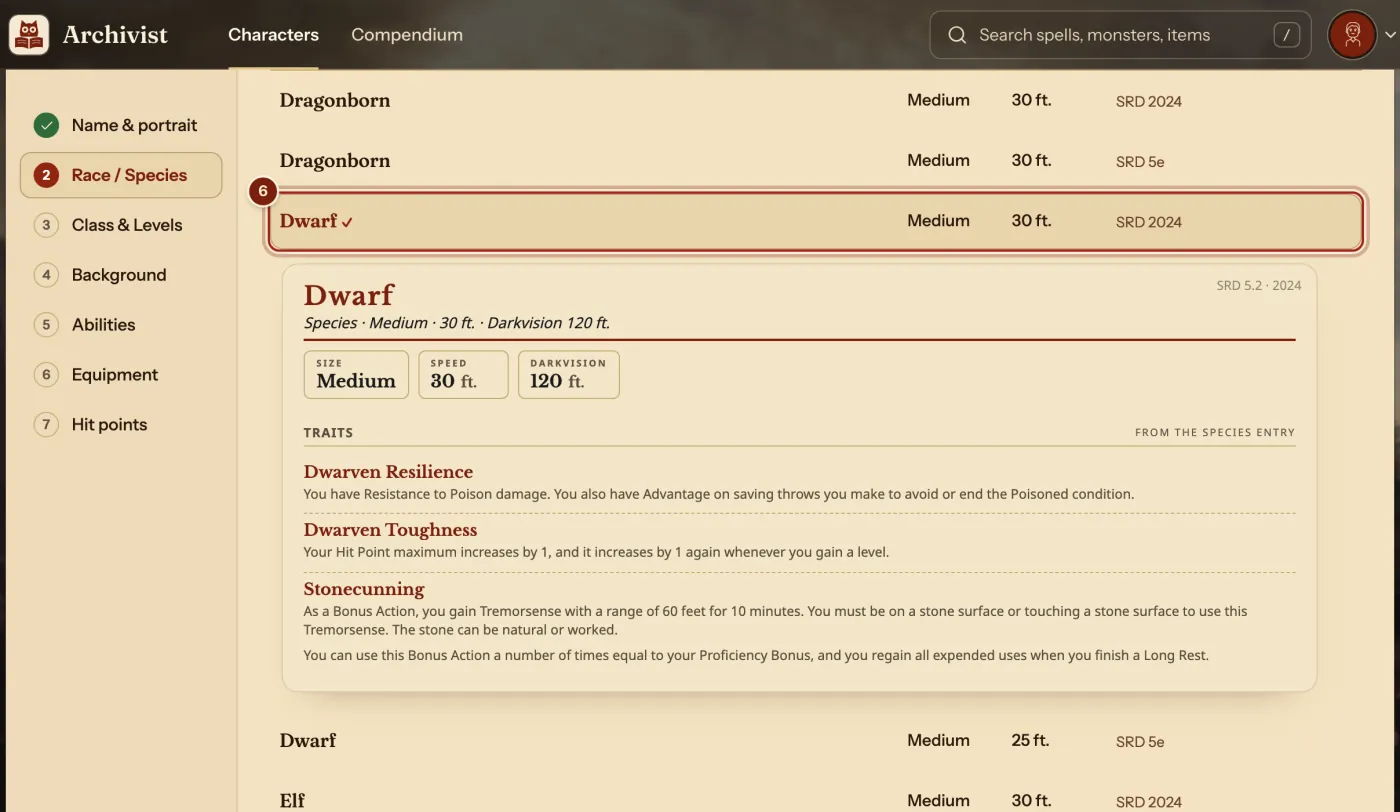
- Press a species to read its card and pick it. Then press Next: Class.
- Press Add Class.
- Press a class to read it.
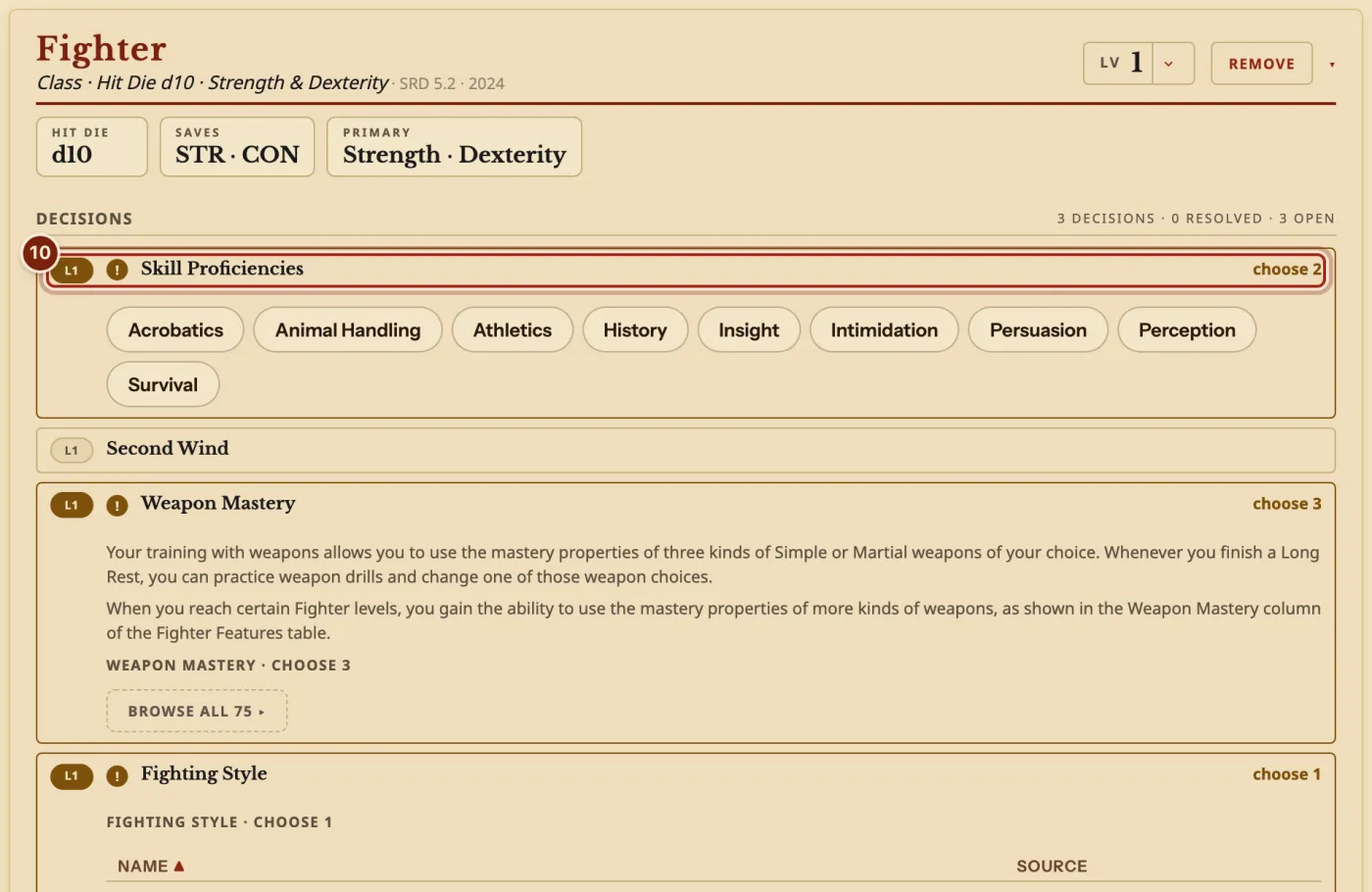
- Press Add Fighter to your character, or whichever you picked.
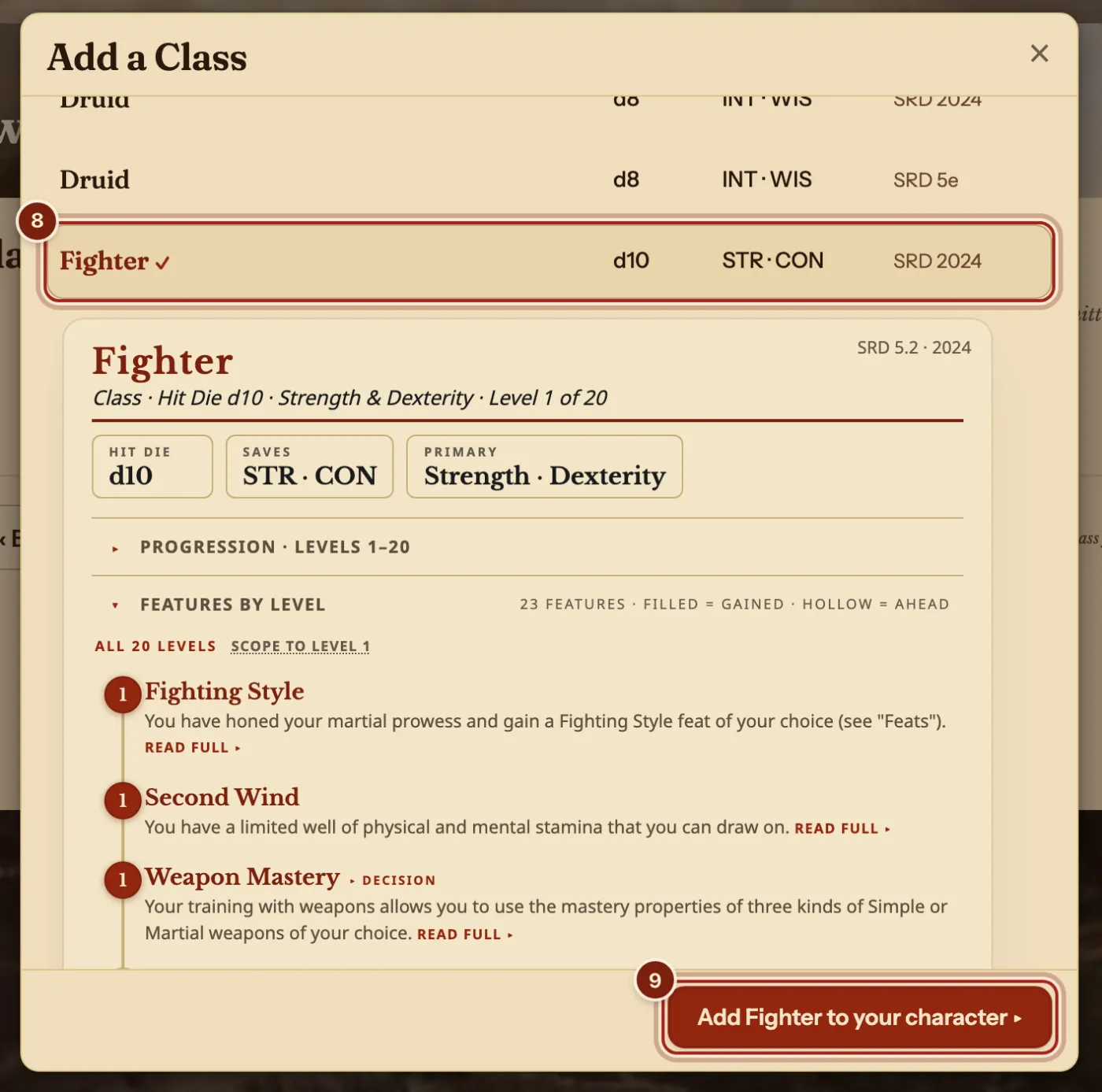
- Make each choice marked with ! on your class's card.
Background, abilities and gear
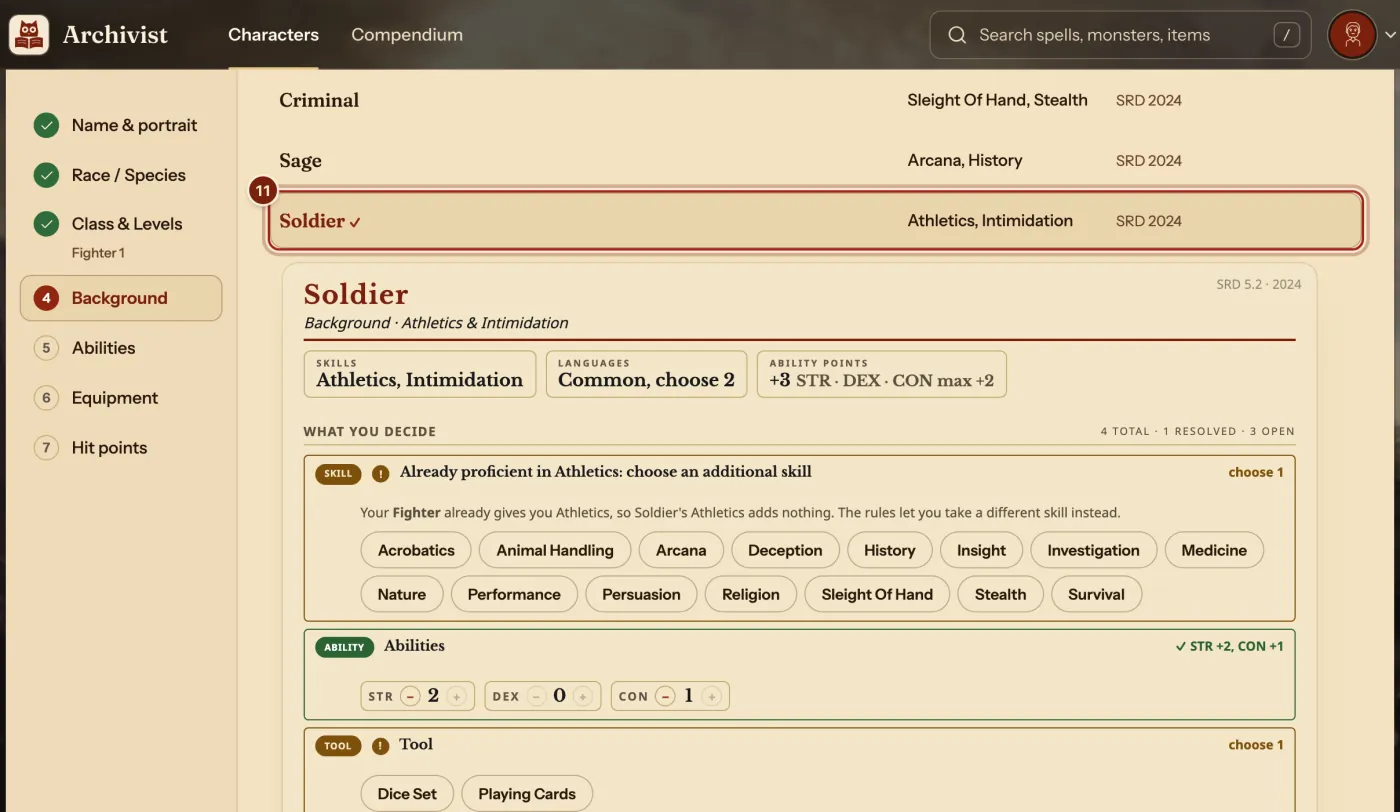
- Press Next: Background, then press a background and give out its ability score increases.
Mixing the rules is fine: when a 2024 background gives your increases, a note says your 2014 species' increases are not used. Keep species ability score increases on the Abilities step keeps both.
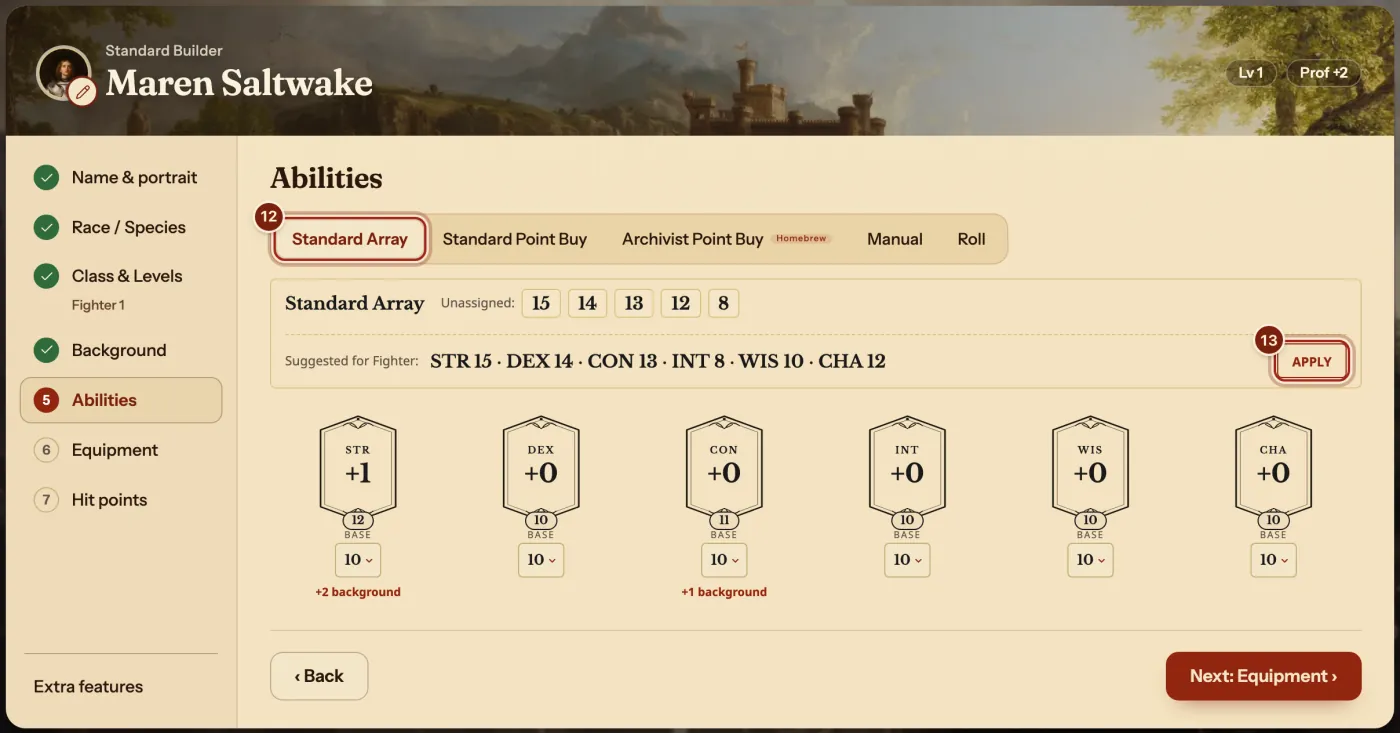
- Press Next: Abilities, then Standard Array.
- Press Apply to use the numbers suggested for your class.
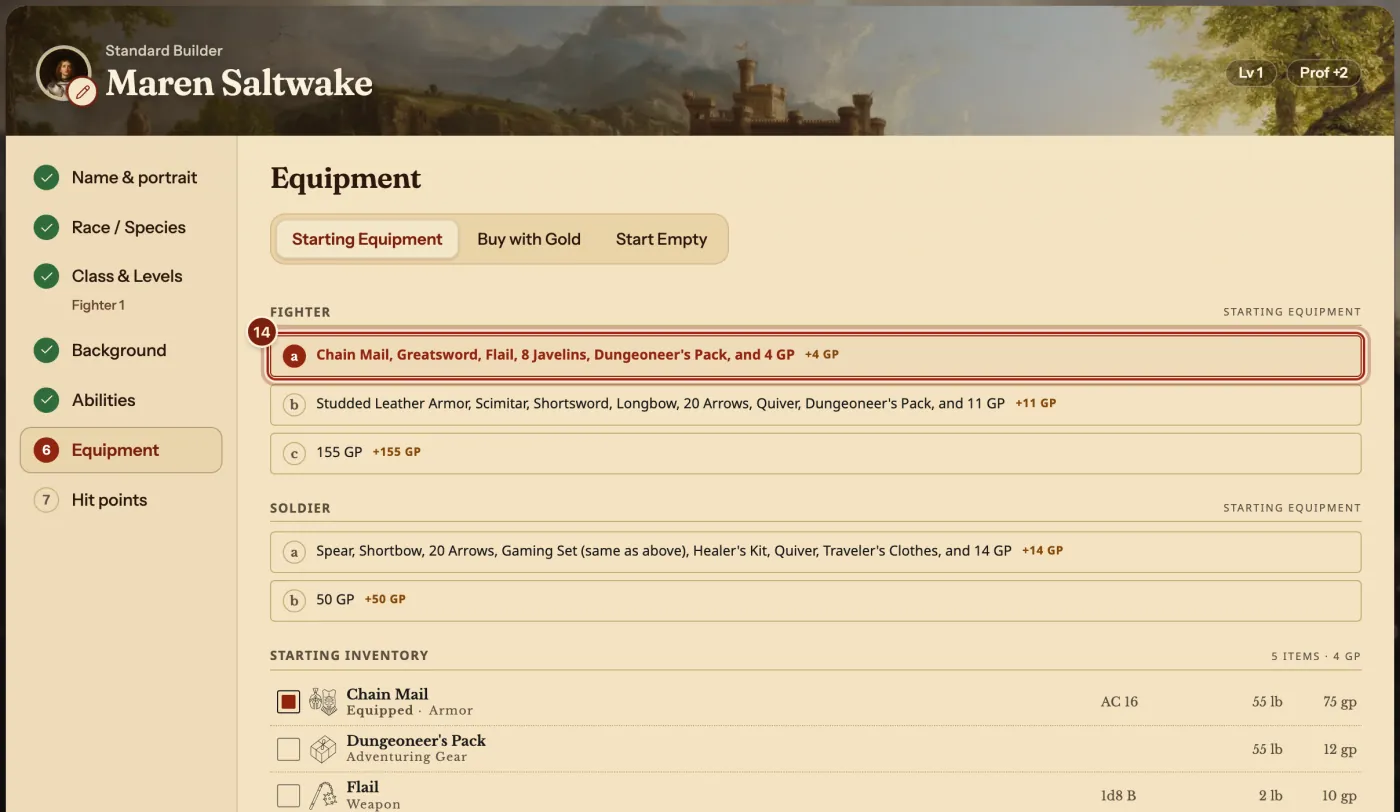
- Press Next: Equipment, then press the kit you want from your class and from your background.
Finish and play
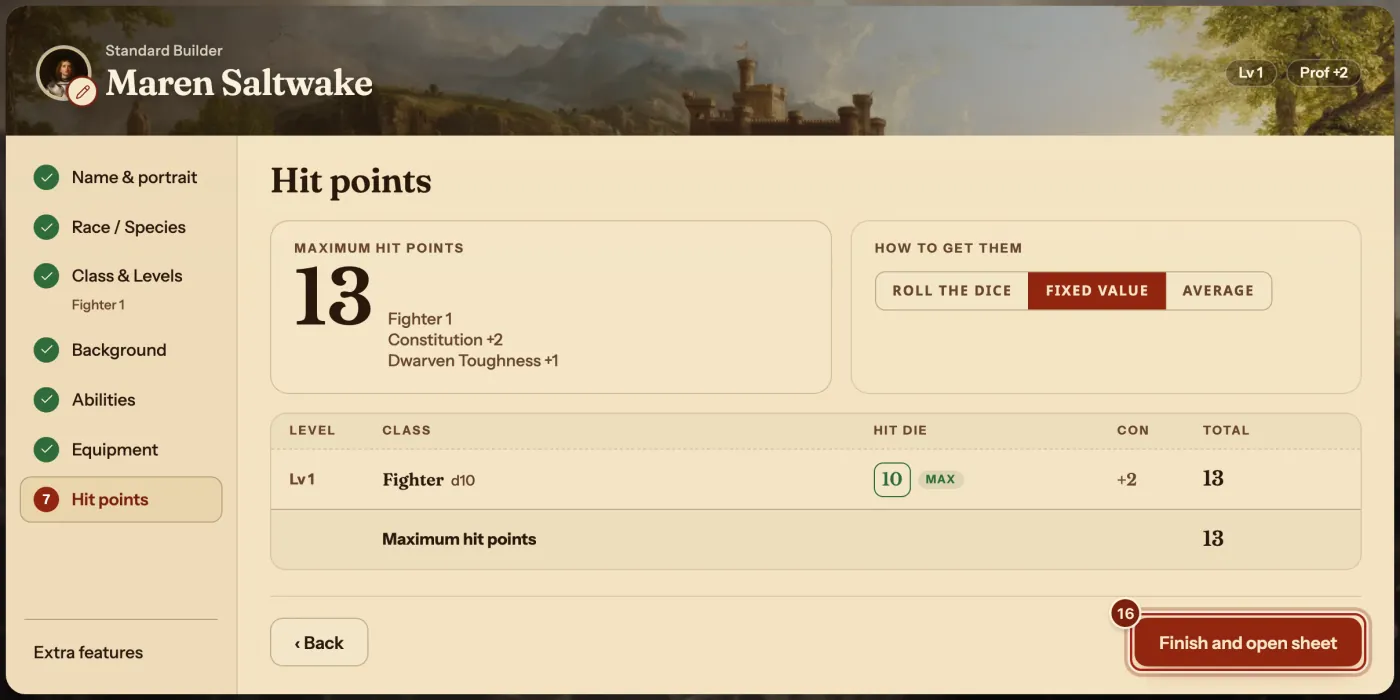
- Press Next: Hit points. The numbers are already worked out.
- Press Finish and open sheet.
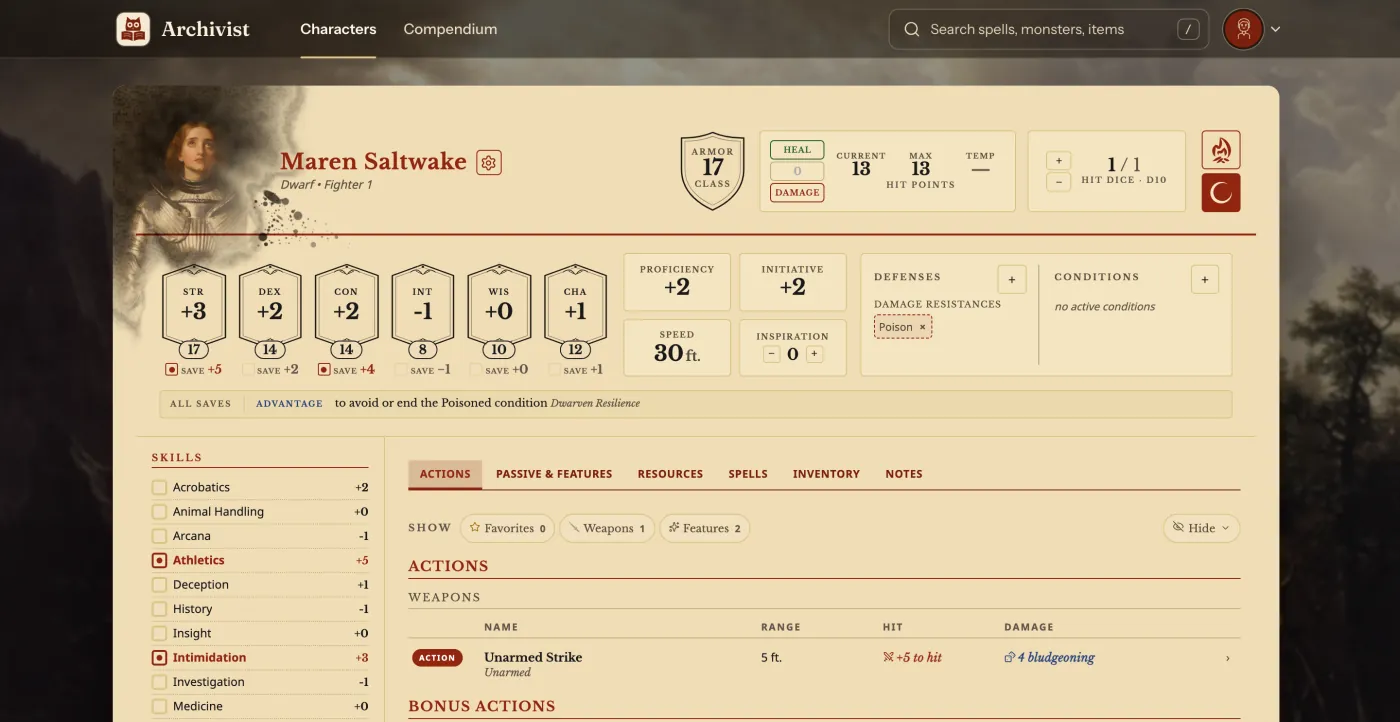
- Play. Press any number on the sheet to roll it, and hover Armor Class, Speed or an ability to see what adds up to it.
The seven steps at a glance
Press any step's name on the left of the Builder to go back to it, at any time.
| Step | What you decide | What the sheet gets |
|---|---|---|
| Name & portrait | Who you are playing. | The name and portrait on the sheet. |
| Race / Species | Your species. | Speed, senses, traits and defenses. |
| Class & Levels | Your class, levels, subclass, skills and features. Add more classes to multiclass. | Hit Dice, saves, proficiencies, features, spell slots. |
| Background | Your background and its increases. | Skills, tools, an Origin feat, ability increases. |
| Abilities | Standard Array, point buy, manual or rolled. | The six scores. |
| Equipment | A starting kit, gold, or nothing. | Your Inventory and coins. |
| Hit points | Fixed, average or rolled. | Your maximum hit points. |
Questions
Can I use my own homebrew in the Builder?
Yes. Your homebrew sits in the same lists as the SRD. See Make a homebrew class and Make a homebrew species.
How do I change something later?
On the sheet, press the gear beside your name, then Builder. Change anything, then press Done, or View sheet at the top. Archivist asks Keep your changes?: press Keep changes, or Undo changes to put the sheet back. To gain a level, the same menu's Level up walks you through it: see Level up a character.
What are Extra features?
The entry at the foot of the Builder's steps holds what your DM gives you from outside your class: a feat, a boon, an optional feature or a spell. See Add feats, boons and DM gifts with Extra features.
Is there a faster way?
Yes. Quick build asks for a name, a face, a species, a class, a background and a level, and fills in the rest. See Make a 5e character in two minutes.
Can I use both the older and the newer rules?
Yes. Both are here: the SRD 5.1 and the SRD 5.2. Pick from either in any list. See Play the 2024 rules, the 2014 rules, or both.
I already have a character on paper or in another app.
Give the sheet to your own chat app, connected to Archivist, and ask it to make the character: it reads a PDF, photos or the sheet's text. See Import a character from a PDF or a photo.
Keep going
- Make a 5e character in two minutes with Quick buildA name, a face, then species, class, background and level on one screen.
- Import a character from a PDF or a photo of your sheetGive your chat app a PDF, photos or the text of any sheet, and it makes the character.
- Level up a characterChoose Level up in the sheet's gear menu and follow its steps.
- Add feats, boons and DM gifts with Extra featuresBuilder, Extra features, Add a feature: or write your own.