How to bring a whole homebrew book or supplement into Archivist
The short answerBy hand, a book comes in one entry at a time: in the homebrew editor, press New homebrew…, pick the kind, write the entry's lines and press Create, then the next. Or connect your own chat app, such as Claude or ChatGPT, to Archivist once, give it the book's PDF and ask it to bring the book into a compendium of its own. It lists what the book holds, agrees with you what to bring in, then makes the entries in batches, in an order that lets them link to each other, and tells you after each batch what is done and what is next.
- For DMs and players
- 15 short steps
- Updated 19 November 2026, for Archivist 1.7.0
Works with any homebrew PDF you have the right to use: a book, a supplement, a zine or your own notes. To try it on something small first, the sample page has a PDF of three entries.
By hand, one entry at a time
- In the top bar, press Compendium.
- In the Compendiums list on the left, press the ⋯ beside Homebrew. On a computer it shows when you point at the row; on a phone or a tablet, press Compendiums first.
- Press New homebrew…, then the kind, such as Monster.
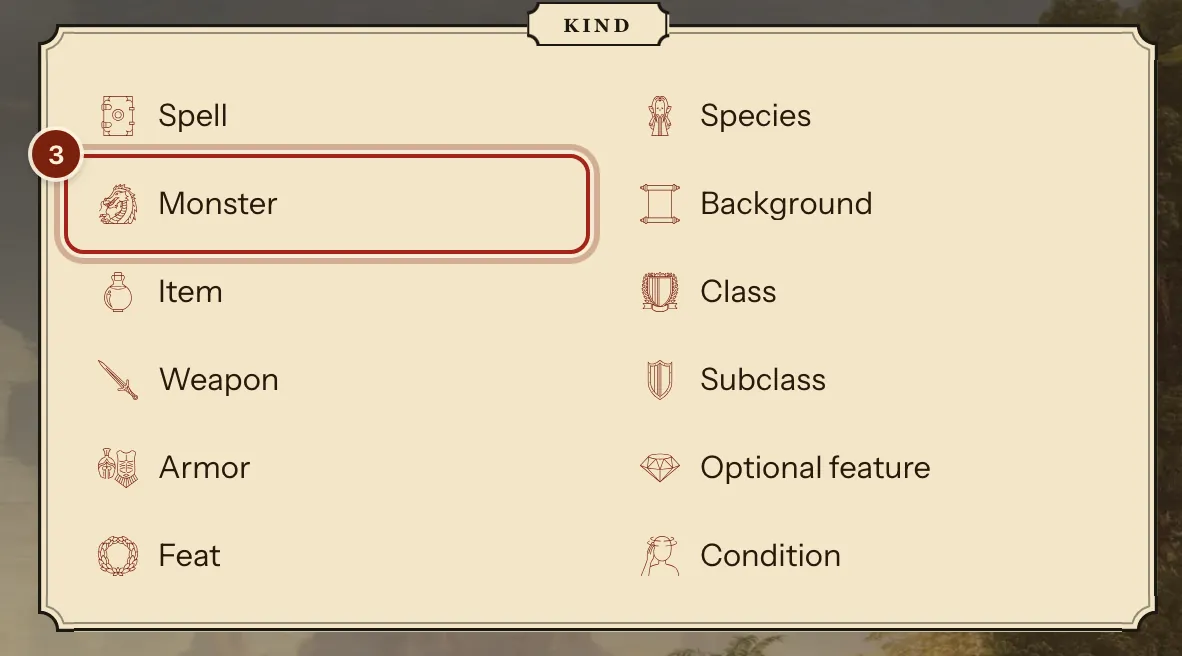
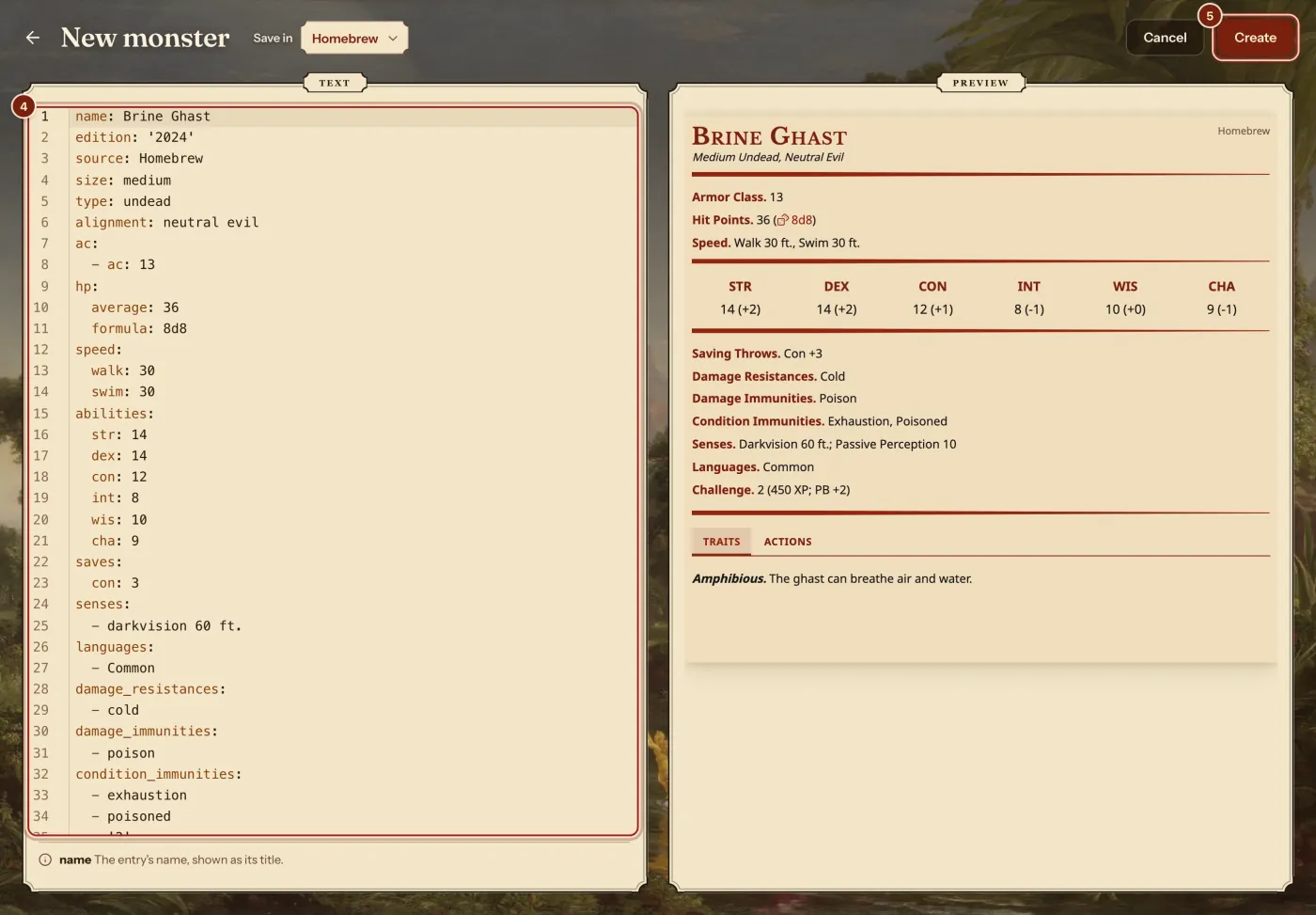
- In the Text box, write the entry in Archivist's lines, or paste lines you have. The Preview beside it draws the entry as you type.
- Keep Homebrew beside Save in, and press Create. The new entry opens in the Compendium.
A book comes in this way one entry at a time: make each one, then the next. Make a homebrew monster, Make a homebrew magic item and Make a homebrew spell walk one entry of each kind, and Make homebrew from scratch explains the editor.
With your own chat app: start it
- Connect your chat app to Archivist once, if you have not: see Connect your own chat app.
- Give it the book's PDF: attach it, or in Claude Code or Codex put it in the folder you start in.
- Paste:Prompt
Bring the whole book my-homebrew-book.pdf into Archivist, in a compendium of its own.
Agree what comes in
- It reads the book's contents and tells you what it holds, kind by kind, with how many of each.
- Say what to bring in: the whole book, some chapters, or only some kinds. Adventure text and advice to the table stay out.
- It makes one compendium for the book, named after it, or uses the one you name.
Follow it batch by batch
- It brings the entries in by kind, in an order that lets each batch link to the last: conditions, armor, weapons and items, then spells, optional features and feats, species and backgrounds, classes and subclasses, and monsters last.
- After each batch it tells you how many of each kind are done, what is next, and what waits on your answers. Answer its questions together when it asks.
Archivist paces the changes, so a long book takes a while: your chat app waits when it is asked to.
- To pick it up after a break, in a new chat, paste:Prompt
Carry on bringing my-homebrew-book.pdf into Archivist. Look at what its compendium holds already, then do the next part.
The book's compendium is the record of what is done: it looks there first, then goes on with what is missing.
Check it in Archivist
- Press Compendium in Archivist and pick the book's compendium in the Compendiums list on the left. Its line there shows how many entries it holds, so you can see how far your chat app got, and the entries are listed beside it. Open a few to check them.
Your chat app's report lists the entries it made, the ones it linked instead because they were there already, and anything the player applies by hand.
What a book can bring in
Each entry becomes a working part of the sheet, not just text.
| Kind | On the sheet |
|---|---|
| Classes and subclasses | In the Builder, with their features level by level. |
| Species, backgrounds and feats | In the Builder, with their choices and bonuses. |
| Spells | In Manage spells, cast from the Spells tab. |
| Magic items, weapons and armor | In Add Item, with charges, attunement and bonuses. |
| Monsters | As full stat blocks you can roll from, in notes and on the campaign page. |
| Optional features and conditions | In your class's picks and the Conditions list. |
Questions
Can I bring in only part of the book?
Yes. Say which chapters or which kinds when it tells you what the book holds.
What if the book changes later?
Give your chat app the new version and ask it to update the book's compendium. It changes the entries already there instead of making them twice.
Can my players use it?
Yes. Export the compendium and send them the file. See Share homebrew with your party.
Can I try it on a sample first?
Yes. The sample homebrew page has a monster, a magic item and a spell to bring in.
Keep going
- Bring in homebrew from a PDF, a web page or pasted textGive your chat app the PDF, the page or the text, and it makes the entries.
- Prompts to copy for your chat appCheck the connection, bring in a sheet, a book or homebrew, and fix notes.
- Connect your own chat app to ArchivistAdd one address in your chat app, sign in, and it can read and change your characters.
- Share homebrew with your partyExport your compendium as a zip; they bring it in with Import homebrew.