How to bring in a D&D Beyond character
The short answerBy hand: on the Characters page, press New character, then Standard Builder, and copy your D&D Beyond character in step by step. Or save it as a PDF on D&D Beyond: open it, press Manage, choose Export to PDF and download the file. Then give the PDF to your own chat app, such as Claude or ChatGPT, connected to Archivist, and ask it to make the character. It asks you about anything the PDF leaves open, and you check the character in Archivist and make the last picks in the Builder.
- For players
- 14 short steps
- Updated 19 November 2026, for Archivist 1.7.0
Archivist is not affiliated with D&D Beyond or Wizards of the Coast.
By hand, in the Builder
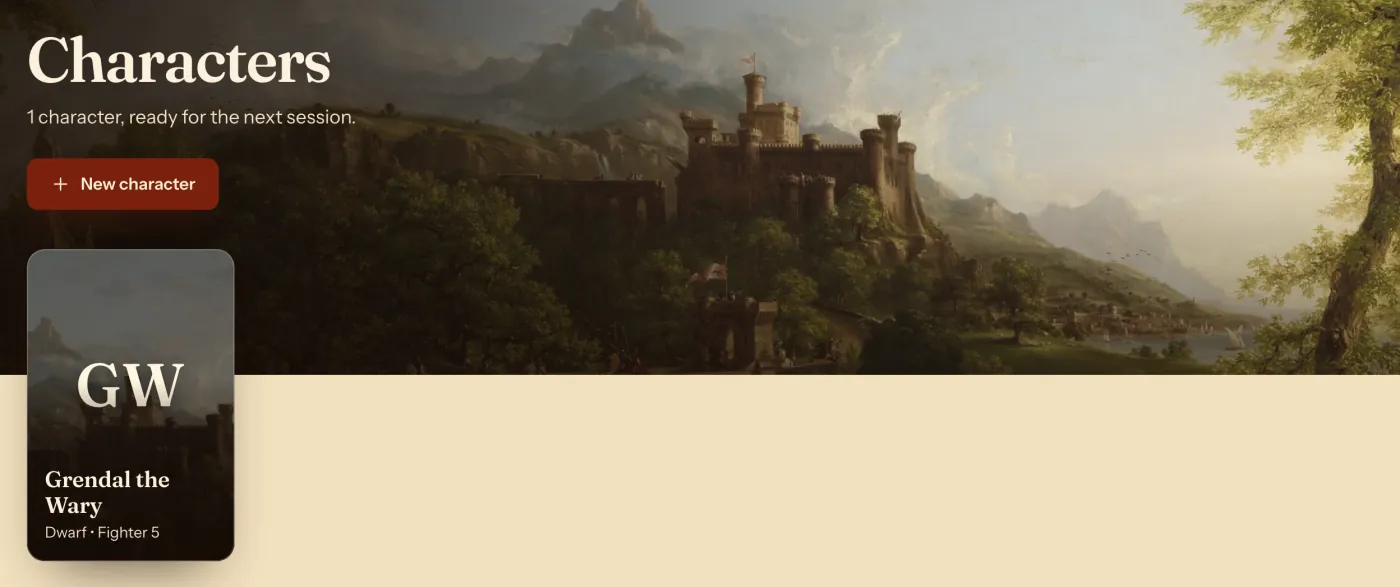
- On the Characters page, press New character.
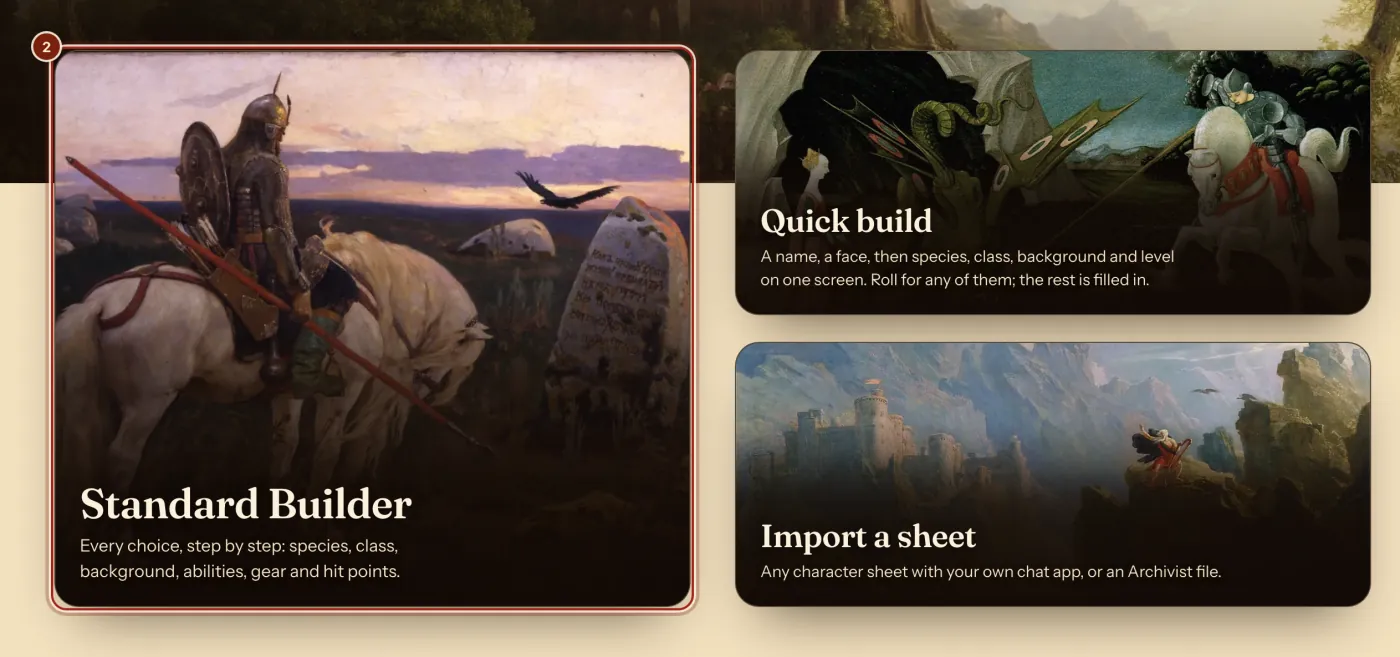
- Press Standard Builder and copy your D&D Beyond character in step by step: species, class and levels, background, abilities, equipment and hit points. Or press Quick build for a ready character to change as you like.
Make a character walks every step of the Builder, and Quick build makes a character in a few presses.
With your own chat app: save your character as a PDF
- On D&D Beyond, open My Characters and press View on your character.
- Press the small Manage button next to the name.
- Choose Export to PDF, near the bottom of the panel.
- When it says PDF Generated, press Click to Download and keep the file.
Give it to your chat app
- Connect your chat app to Archivist once, if you have not: see Connect your own chat app.
- In your chat app, attach the PDF, or in Claude Code or Codex put it in the folder you start in.
- Paste:Prompt
Make this character in Archivist from the sheet I gave you.
- Answer what it asks, and allow its Archivist tools when it asks.
- Read its report.
It reads the whole sheet first. With a sheet that settles everything, such as the sample sheet, it can save the character without a question. When the sheet leaves something open that it cannot work out, such as the armor behind a printed Armor Class or where an Expertise comes from, it asks first and saves nothing until you have answered. For something on the sheet that none of your compendiums has, it asks you for its text, to make it as your own homebrew, or whether to leave it out for now: Archivist tells it never to write rules from memory. When it is done, it says the character is saved, with a link that opens it, and whether every number matches your sheet. Then it lists what it brought in, what it worked out for you to check (such as the base ability scores, from a sheet that prints only the totals), anything it could not bring in, and the picks left for the Builder.
Check it in Archivist
- Open the link your chat app gives you, or press Characters in Archivist: the new character is there.
- Compare its Armor Class, Hit Points, saves and skills with your sheet. Any number that differs is in your chat app's report, with why.
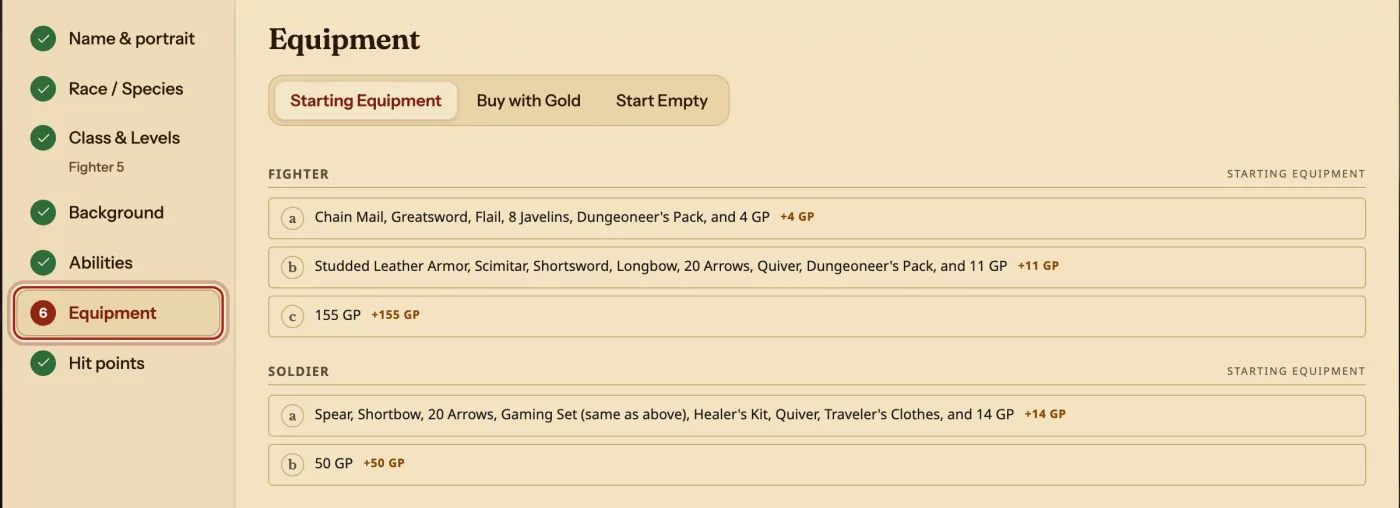
- Press the gear beside the character's name, then Builder. A step with a pick still open shows its number in the list of steps instead of a tick, such as Equipment when the sheet does not say which starting kits were picked. Make the picks you want, then press Done at the end of the steps and Keep changes.
Your chat app leaves open only what the sheet does not settle, such as the starting kits: the gear itself is on the sheet already.
What to expect
The PDF holds your character's choices; your chat app links each to the entry your compendiums have.
| From the PDF | In Archivist | Check |
|---|---|---|
| Scores, level, class, species | Built into a sheet that works out every number. | That Armor Class and hit points match your table. |
| Spells and items | Linked to the SRD or your own compendiums where they have them. | The differences your chat app lists when it is done. |
| Anything none of your compendiums has | Asked about: you give its text to make it as your own homebrew, or leave it out for now. | You choose what comes in. |
Questions
Does my D&D Beyond character change?
No. You download a copy of it as a PDF, and your character stays where it is.
Can I bring in a sheet from somewhere else?
Yes. Any character sheet works the same way, as a PDF, photos or text. See Import a character from a PDF or a photo.
Can I bring my homebrew classes over too?
Yes. Give your chat app the class's text and it makes it as your own homebrew first. To write a class yourself, see Make a homebrew class.
Is my character the same on my phone afterwards?
Yes. It stays in sync on every device you sign in on.
Keep going
- Import a character from a PDF or a photo of your sheetGive your chat app a PDF, photos or the text of any sheet, and it makes the character.
- Connect your own chat app to ArchivistAdd one address in your chat app, sign in, and it can read and change your characters.
- Move from another character app or game table appEvery way in on one page: your chat app for a PDF, photos or text, or an Archivist file.
- Make a character, step by stepQuick build for one screen, Standard Builder for every choice.